How to add a skill
to your AI assistant
Every one of our 200 skills installs in under a minute. Paste it into any chat for a one-off, or save it in Claude, ChatGPT, Gemini, Copilot or Claude Code so it's there every time. Pick your assistant below.
The short answer
Download the skill's ZIP file, then in Claude open Settings, choose Skills under Customize, click Add and pick Upload skill, and select the ZIP. The skill appears in your list and Claude uses it whenever a request matches its description. You can also paste the skill into a Project's instructions.
Any AI chat: copy, paste, send
The fastest way, and it works in every assistant — including free plans. The skill lasts for that one chat.
- Step 1
Copy the skill
Press Copy skill on any card or skill page. The whole instruction set is now on your clipboard.
- Step 2
Paste it into a new chat
Open a fresh chat and paste it as the first message. The assistant replies in one line that it's ready.
- Step 3
Send your input
Send exactly what the skill asks for — a draft, a table, a transcript. The answer comes back in the skill's format.
Tip: one skill per chat. Stacking several skills in the same conversation makes the assistant mix their formats.
Claude: upload the skill once
Uploaded skills stay in your account. Claude reads each skill's name and description and loads it on its own when a request matches — no pasting needed.
- Download the skill's ZIP from its page (for example, regex-builder.zip). It holds one folder with the skill's SKILL.md.
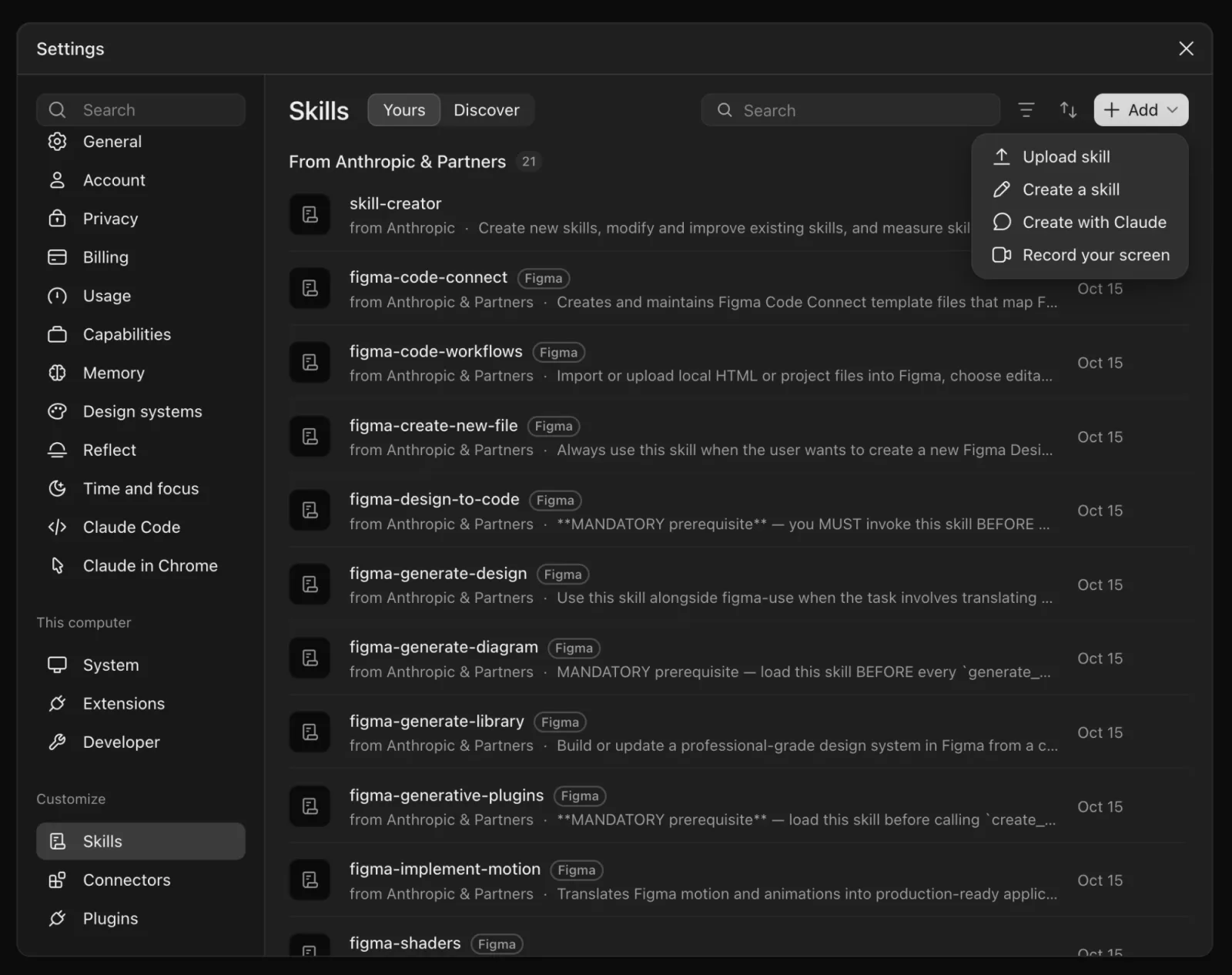
- In Claude, open Settings and choose Skills under Customize 1.
- Click Add in the top right 2 and choose Upload skill 3.
- Select the ZIP. The skill appears under your skills — check it's switched on.
- Start a new chat and ask for the task, for example "write a regex for Indian mobile numbers".
Prefer Projects?
Create a Project, open its instructions and paste the skill (the text after the front matter). Every chat in that Project then follows it — handy for a team that shares one workflow. The same menu also has Create a skill, if you'd rather paste the instructions than upload a file.
ChatGPT: add it as a Codex skill
OpenAI's Codex app has its own Skills screen and reads the same SKILL.md format as Claude, so every skill here installs as is. Codex loads a skill when your request matches its description.
- Get the skill folder: run the two commands below, or download the skill's ZIP and unzip it.
git -c http.version=HTTP/1.1 clone https://scienceofapps.com/skills/ai-skills.git cp -r ai-skills/regex-builder ~/.codex/skills/ - In Codex, open Customize → Skills 1 and press refresh (or restart Codex). The skill appears under Installed.
- No terminal? Click Add 2 → Create skill 3 and paste the skill's instructions.
- Start a task that matches the skill — for example "write a regex for Indian mobile numbers".
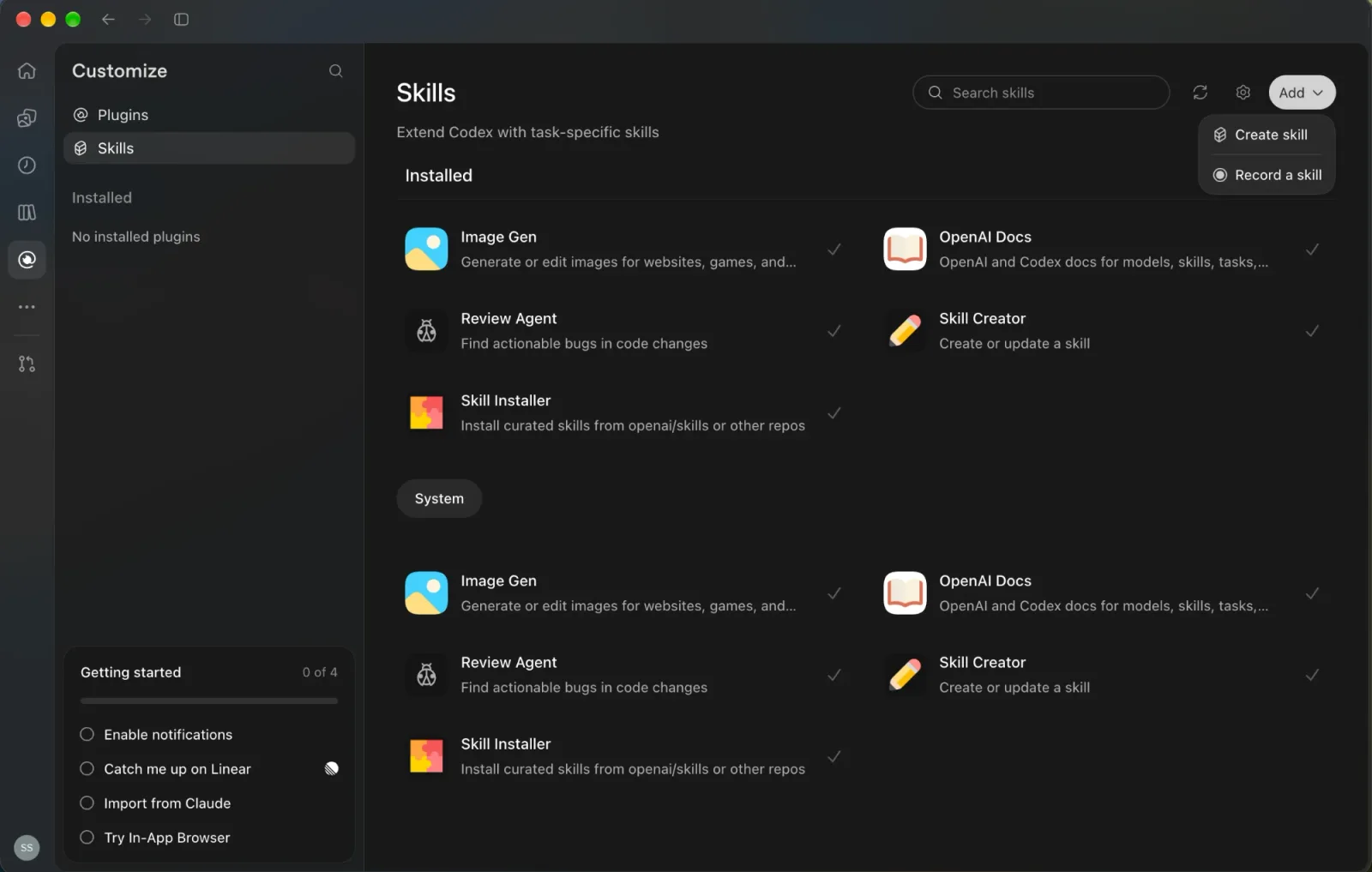
~/.codex/skills/ and press refresh. Screenshot of the Codex desktop app, October 2026.In ChatGPT chat
- For yourself: create a Project, open its instructions, paste the skill and save. Chats inside the Project use it.
- For a team: create a custom GPT and paste the skill into its Instructions field; share the GPT link.
- For every chat: Settings → Personalization → Custom instructions also works, but it applies to all chats — best kept for one skill you use constantly.
Gemini: save it as a Gem
- Open Gems and create a new Gem.
- Name it after the skill and paste the skill into the Instructions field.
- Save. Open the Gem whenever you need the skill and send your input.
Copilot: paste, or save as a prompt
- For a one-off, paste the skill as your first message in Copilot chat, then send your input.
- In Microsoft 365 Copilot, save it as a prompt to reuse it from your prompt list.
- To share it, paste it into an agent's instructions so colleagues get the same skill.
Claude Code: git clone
The whole library is a git repository on this site. Clone it once, then copy any skill's folder into your skills directory.
- Step 1
Clone and copy
git -c http.version=HTTP/1.1 clone https://scienceofapps.com/skills/ai-skills.git cp -r ai-skills/regex-builder ~/.claude/skills/ - Step 2
Start a new session
Skills in
~/.claude/skills/work in every project;.claude/skills/inside a repo works for that project only. Other agents that read the Agent Skills format load the same folder.
If it doesn't work
| What you see | Fix |
|---|---|
| The assistant answers the skill text itself | Wait for the one-line 'ready' reply, then send your input as a separate message. |
| Replies ignore the skill's format | Start a fresh chat with only one skill pasted; long chats drift away from early instructions. |
| Claude says the upload is invalid | Upload the ZIP from the skill page as is — don't unzip it. It must contain a folder with SKILL.md inside. |
| Claude doesn't use an uploaded skill | Check it's switched on in Settings → Skills, and phrase your request the way the skill's description does. |
| Claude Code doesn't see the skill | The path must be ~/.claude/skills/<skill-name>/SKILL.md. Start a new session after copying. |
| Codex doesn't list the skill | The path must be ~/.codex/skills/<skill-name>/SKILL.md. Press refresh in Customize → Skills or restart Codex. |
| git clone fails or hangs | Check Git is installed (git --version) and copy the command exactly as shown — it includes -c http.version=HTTP/1.1, which some Git builds need for this repository. No account or login is needed. Or download the ZIP instead. |
Installing skills: questions
How do I add a skill to Claude?
Download the skill's ZIP file, then in Claude open Settings, choose Skills under Customize, click Add and pick Upload skill, and select the ZIP. The skill appears in your list and Claude uses it whenever a request matches its description. You can also paste the skill into a Project's instructions.
How do I add a skill to ChatGPT's Codex app?
Copy the skill's folder, with its SKILL.md inside, into ~/.codex/skills/ (the git clone on each skill page does this in two commands), then press refresh in Customize → Skills or restart Codex. You can also open Customize → Skills, click Add and choose Create skill. Codex uses the skill when your request matches its description.
Do AI skills work in ChatGPT and Gemini?
Yes. Every skill here is plain text, so it works in any assistant. Paste it as the first message of a new chat for a one-off, or save it in a ChatGPT Project, a custom GPT's instructions or a Gemini Gem to reuse it in every chat there.
Why isn't my skill doing anything?
Most often the skill was pasted but the input wasn't sent, or several skills were stacked in one chat. Start a new chat, paste one skill, wait for the one-line 'ready' reply, then send exactly what the skill asks for. In Claude, check the uploaded skill is switched on in Settings → Skills.
Where do skills go in Claude Code?
Put the skill's folder, with its SKILL.md inside, in ~/.claude/skills/ to use it in every project, or in .claude/skills/ inside one project. Claude Code reads the name and description and loads the skill when your request matches. New sessions pick up new skills.
Do I need a paid plan to use skills?
Pasting a skill into a chat works on free plans of ChatGPT, Claude, Gemini and Copilot. Saving skills for reuse (Projects, Gems, custom GPTs, Claude's Skills settings) depends on each product's current plan features, which change often — check your plan's settings.
Pick a skill for your job
200 free skills across 16 job profiles. Try the Regex builder first — it takes 30 seconds.